LinkedIn URL Search Filter
Found someone on LinkedIn and want their contact details? This article shows you how to use the LinkedIn URL filter in Contact Search to go straight from a profile link to the full contact profile in Seamless. You can paste multiple URLs to look up several contacts at once, and you will also see how the Seamless Chrome Extension works when you are browsing an individual profile.
Overview
The LinkedIn URL filter lets you look up contacts in Seamless by pasting in their LinkedIn profile URL. If you have found someone on LinkedIn, have a list of profile links, or want to match a LinkedIn profile to a contact in Seamless, you can go straight to that person without building a search around titles, companies, or locations.
Getting Started
Searching by LinkedIn URL is the fastest way to find a specific person when you already know where they are on LinkedIn. Instead of guessing which title, company, or location filters will surface the right contact, you paste the profile link and let Seamless find the match. This saves time and cuts down on scrolling through results that are close but not quite right.
Search for contacts by LinkedIn URL using Contact Search. You can copy a profile link from your browser’s address bar or from another source, like a spreadsheet or CRM, and paste it directly into the filter.
Starting a Search
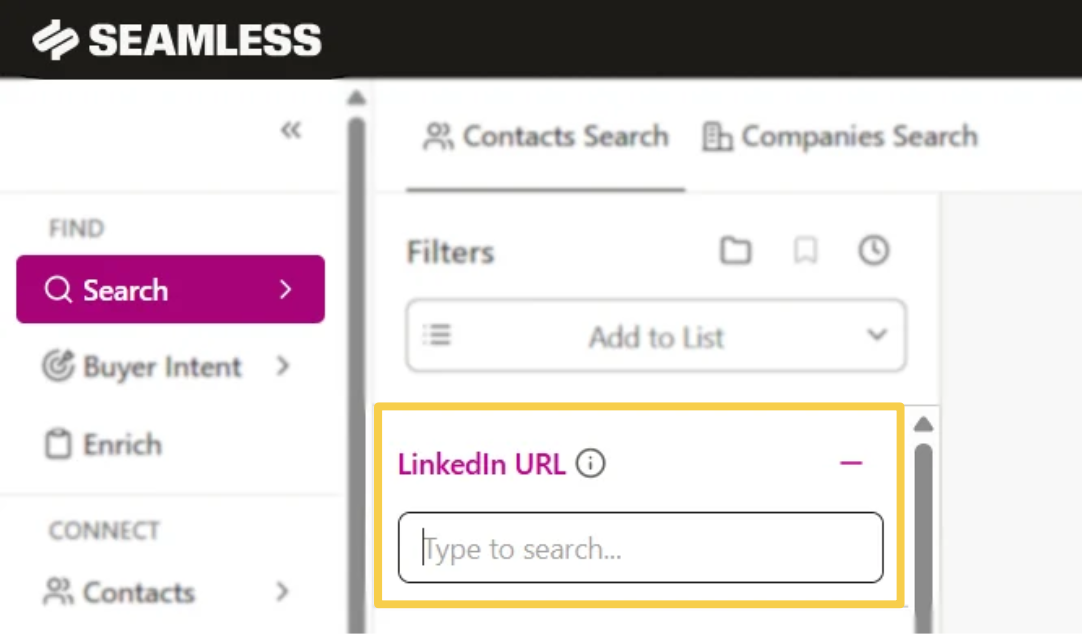
- Log in to Seamless and click the Search icon on the left menu bar. Start a Contact Search.
- Find the LinkedIn URL filter in your list of filters.
- Paste a LinkedIn profile URL into the filter.
- Click the black Search button.
- To save a contact you are interested in, click Find next to the contact. You can also use Find All to save every contact on the page.
Pro-Tip: Copy the full profile URL straight from your browser’s address bar and double-check that nothing was cut off before searching. If a search returns no results, confirm the link points to a person’s profile.
LinkedIn URL Filter Benefits
Get the full contact profile: A LinkedIn URL is often just the starting point. Searching by profile link brings up the contact’s full profile in Seamless, where you can find email addresses, phone numbers, company information, and other details to help you personalize your outreach and decide how to reach them.
Go from a LinkedIn profile to a Seamless contact: When you come across someone on LinkedIn, paste their profile link into Seamless to find the matching contact.
Match leads from other sources: Paste profile links from a list, spreadsheet, or CRM to find the matching contact profiles in Seamless.
Reach a specific person: When you already have the exact person in mind, skip the broader filters and go straight to the contact.
Skip the guesswork: Names, titles, and companies can overlap. A profile link points to one specific person, which helps you avoid pulling up the wrong contact.
Example Use Cases
Social selling follow-up: A prospect connects with you or engages with your post on LinkedIn. Copy their profile link and search it in Seamless to find their contact information and add them to your outreach.
Event and webinar lists: You have a list of attendees with LinkedIn profile links and want to find their contact profiles. Paste the links into the filter to find them.
CRM clean-up: You are reviewing records in your CRM that only have a LinkedIn link. Copy the link and search it to see what else you can find on that contact.