Downloading a CSV
Download your contacts or companies from Seamless and transfer your data into your integrated CRM, marketing automation platform, or dialer. This process can be done individually or in bulk, giving you flexibility and efficiency in managing your information.
After conducting a Contact Search or Company Search and researching desired profiles, you can manage profiles as needed for your workflow. You can filter, manage, and download contact and company profiles.
Filtering and Downloading Contact Profiles
- On Seamless, access your saved contacts through the My Contacts tab on the left hand side.
- Apply desired filters to specify your list of contacts to download. You can apply filters through the Filter Funnel icon or directly to the specific column you want to target.
Learn more about filtering your contacts: Filtering My Contacts

- After filtering contacts, and when you are ready to download a list of contacts, you can download individual, a selection, or a full filtered list of contacts.
To download All Filtered Contacts, Click the 3 vertical dots in the top right corner. Then, choose Download Filtered.
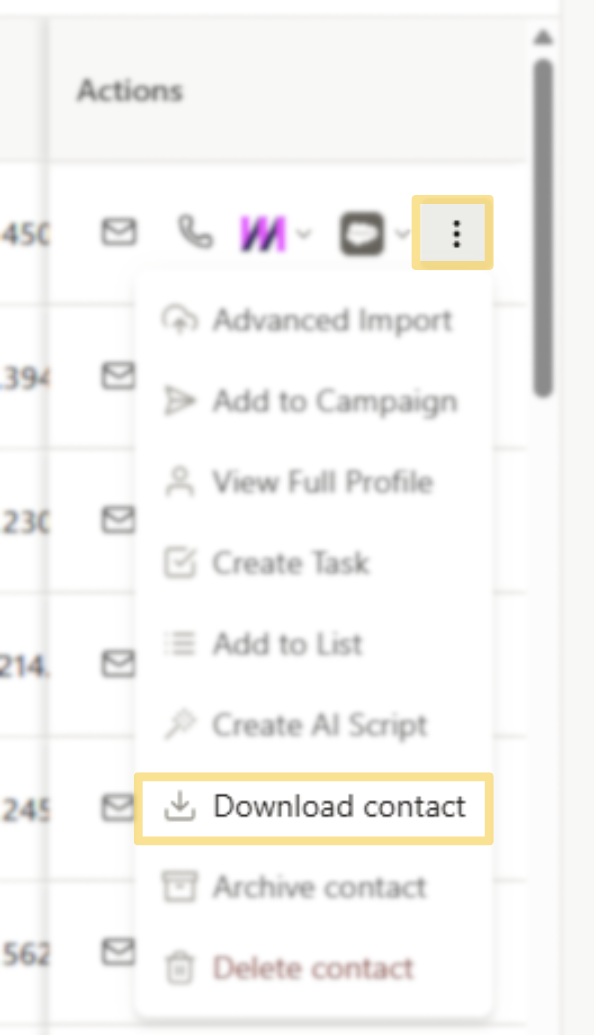
Additionally, contacts can be downloaded in bulk by a selection or all from the My Contacts page. You will still use the 3 vertical dots in the top right corner to download. The displayed options to download will depend on your current contact selections. .
Download Selected Contacts - Use the checkboxes left side to select desired contacts. Then, use the "More" option (3 dots top right corner), and select "Download Selected"
Download All Contacts - Download all researched contacts in My Contacts. Click the 3 dots, and choose Download All.
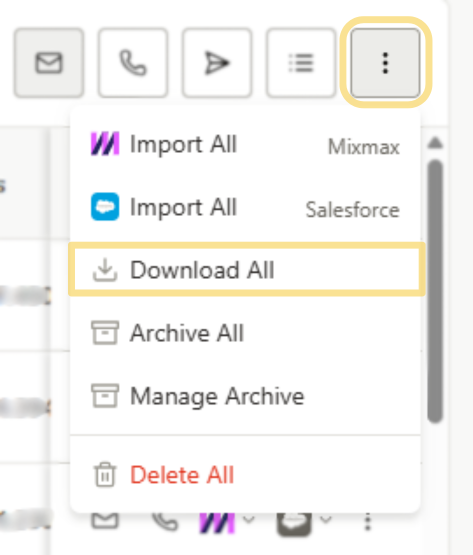
To download an Individual Contact, click the 3 vertical dots in the Actions column on the right hand side of the contact’s row. Then, choose Download Contact.
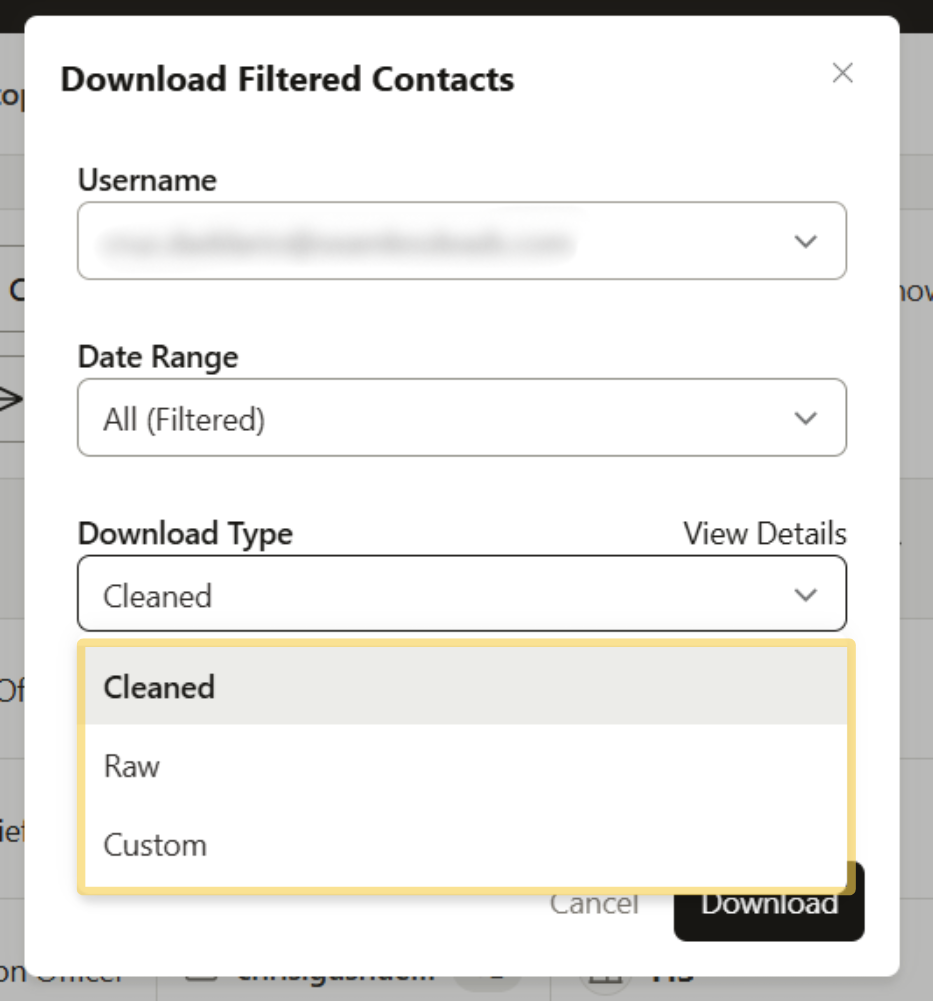
- Further customize your download, by specifying the Download Type. Select from Clean, Raw, or Custom.
- Click Download to get access to your contacts as a CSV file.
Filtering and Downloading Company Profiles
On Seamless, access your saved companies through the My Companies tab on the left hand side. The workflow too download companies to a CSV file will be similar to how you would download contacts to a CSV file.
When you are ready to download a list of companies or singular company to a CSV file, you can download individual, a selection, or a full filtered list of companies.
To download an Individual Company, click the 3 vertical dots in the Actions column on the right hand side of the company’s row. Then, choose Download company.
Download Companies to a CSV File in Bulk
Download Filtered Companies: Apply desired filters to specify your list of companies to download. You can apply filters through the Filter Funnel icon or directly to the specific column you want to target.
Learn more about filtering your companies: Filtering My Companies
Click the 3 vertical dots in the top right corner. Then, choose Download Filtered.
Download a Selection of Companies: Select the companies you want to download with the checkboxes on the left side.
Click the 3 vertical dots in the top right corner. Then, choose Download Selected.
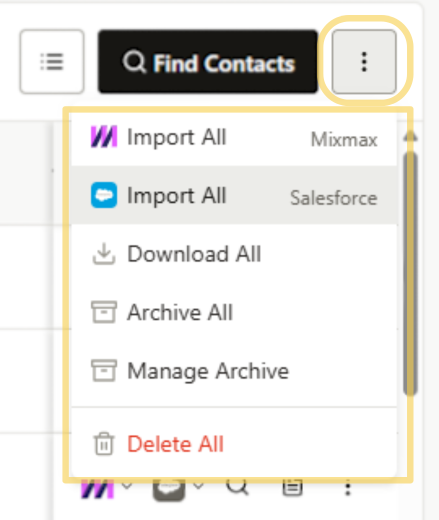
Download All Companies - Download all researched companies in My Companies. Click the 3 dots, and choose Download All.
- Further customize your download, by specifying the Download Type. Select from Clean, Raw, or Custom.
- Click Download to get access to your companies as a CSV file.
Download Types
Explore the various file download type options and their definitions to choose the format that best suits your needs and preferences.
- Clean: Use this to download All Contacts from your My Contacts (or My Companies) list. Cleaned Data will provide you with the most accurate data regarding each contact and will exclude invalid information.
- Raw: Use this to download All Contacts from your My Contacts (or My Companies) list. Raw Data will provide you with all data that was found on the contact (Be aware that this includes any invalid emails or phone numbers).
- Custom: Use this to download to tailor your data exports according to specific criteria and preferences. This feature allows for a personalized selection of contact information, ensuring that users can extract exactly the data they need for their unique business requirements.

Pro-Tip
Once you select your fields for the custom download, you don’t have to re-select them for the next one!
Suggest Export Fields
With a custom download type, users can select the fields they prefer to download for each profile. This allows users to customize based on their unique preferences, but here are some we recommend:
- First Name
- Last Name
- Company Name
- Title
- Email 1, Email 2, Email 3
- Company Phone 1, Company Phone 2
- Contact Phone 1, Contact Phone 2, Contact Phone 3