
Using Seamless Node in n8n
This article explains how to set up and use the Seamless node in n8n, including how to connect your account, search and research contacts, use triggers, and connect Seamless to an AI Agent through MCP.
The Seamless node in n8n allows you to connect Seamless to automated workflows for contact search, company search, enrichment, list management, campaigns, email actions, tasks, activity, templates, and credit checks.
The Seamless integration is built and maintained by Seamless and verified by n8n, which means it can be added to your n8n workspace and used directly in workflows once it has been set up by an instance owner.
You can use Seamless in n8n in two main ways:
- Build structured workflows using the Seamless node
- Connect Seamless to an AI Agent through MCP for natural-language workflows
Learn more about Seamless API Integrations and Documentation here: https://docs.seamless.ai/introduction
What You Can Do with the Seamless Node
With the Seamless node, you can automate common sales and marketing workflows all within n8n, including:
- Search and research contacts
- Search and research companies
- Pull contact or company research results
- Check Seamless credit balance and usage
- Create, update, clone, pause, resume, or manage campaigns
- Add or remove contacts from campaigns
- Create and manage campaign steps
- Create and manage contact lists
- Create and manage saved searches
- Create, preview, send, or update email drafts
- Send emails or bulk emails
- Retrieve connected email accounts and email footers
- Create and manage tasks
- Log calls and retrieve call dispositions or sentiments
- Retrieve engagement activity events
- Create and manage email templates
There is also a Seamless Trigger node that can start workflows when certain Seamless events occur, such as completed contact or company research.
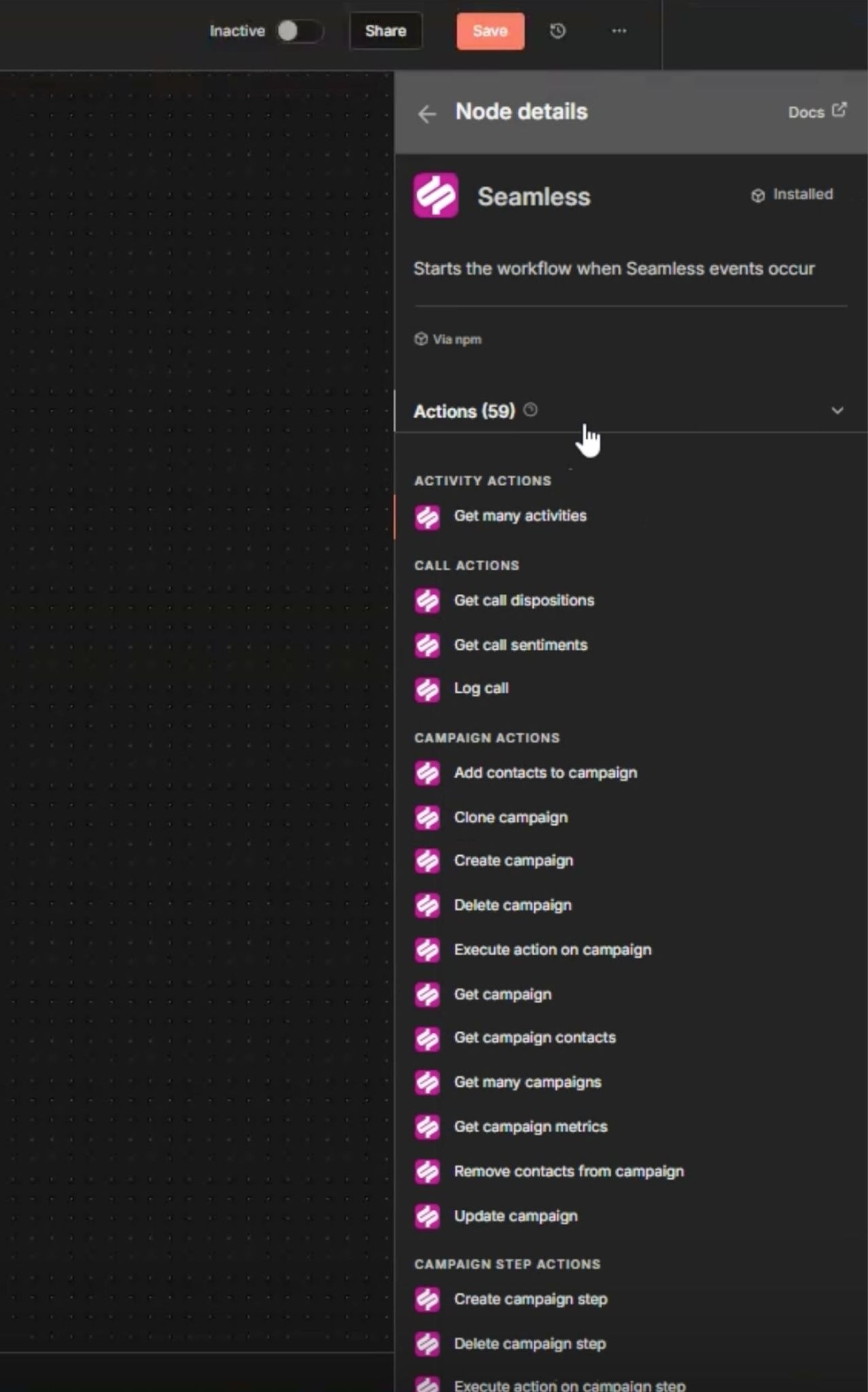
Install and Connect Seamless in n8n
If the Seamless node is already available in your n8n workspace, you can skip the installation steps and connect your account directly.
To install and connect Seamless:
- Open your n8n workspace.
- Go to Settings > Community Nodes.
- Click Install.
- Enter the Seamless package name:
@seamless-oss/n8n-nodes-seamless - Confirm the installation.
How to apply the Seamless node:
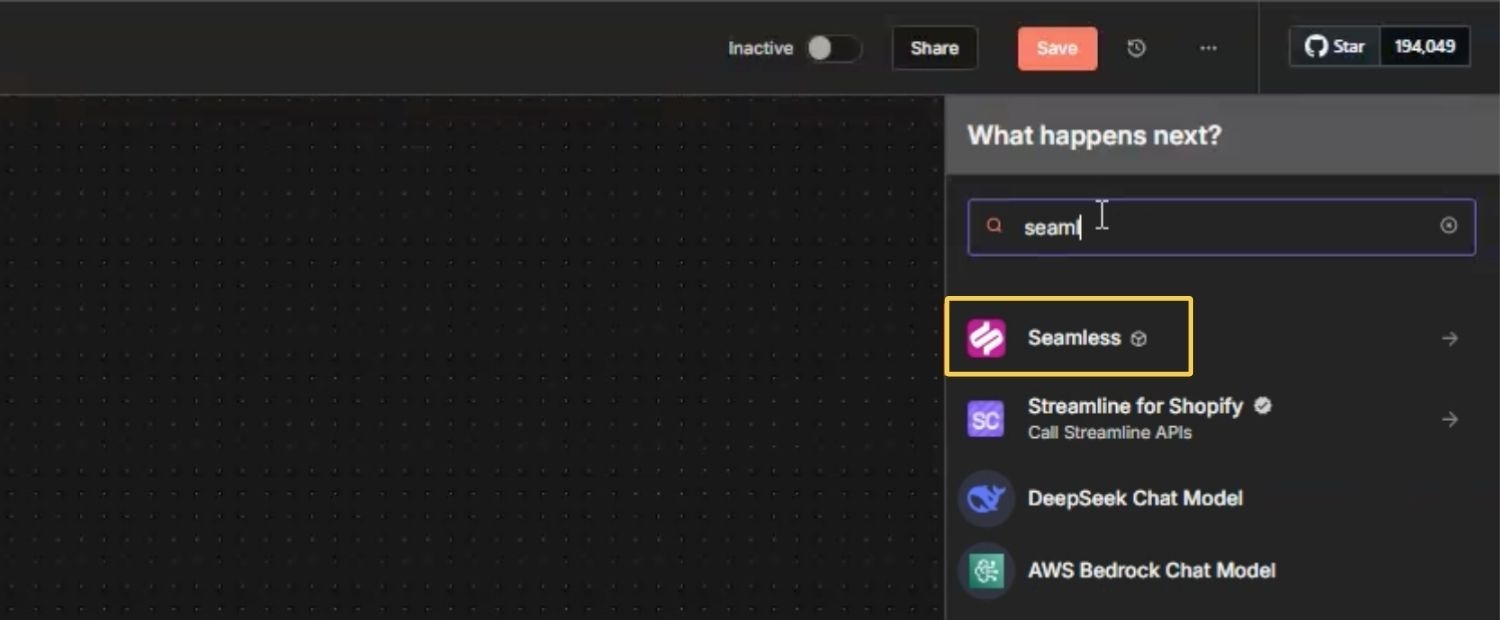
- Return to your workflow canvas.
- Click the + icon to add a new node.
- Search for and select the Seamless node.
- In the credential section, click Create New Credential.
- Choose OAuth2.
- Click Connect Account. Log in to Seamless, if prompted, and approve access.
Once connected, your Seamless credential will be saved in n8n and can be reused across Seamless nodes in your workflows.
Example Workflow: Search and Research a Contact
A common Seamless workflow in n8n is to search for a contact, send that contact to research, and then pull the enriched results.
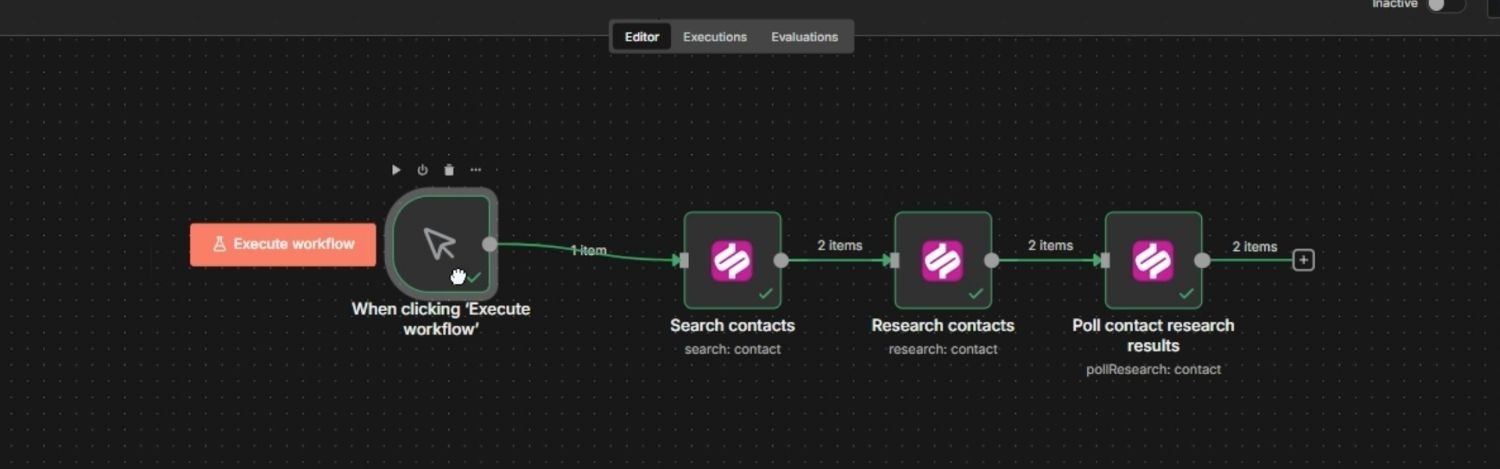
Step 1: Add a Trigger
- Open a new or existing n8n workflow.
- Click the + icon.
- Add a trigger node, such as Manual Trigger.
A manual trigger is helpful when testing a workflow before turning it on.
Step 2: Search for a Contact
- Click the + icon after the trigger.
- Select the Seamless node.
- Choose your connected Seamless credential.
- Select the Contact resource.
- Select the Search operation.
- Enter your search criteria.
Search criteria may include details such as:
- First name
- Last name
- Company
- Job title
- Location
- Result limit
For testing, set the result limit to 1 so only one contact is returned.
Step 3: Research the Contact
After the contact search returns a result:
- Add another Seamless node.
- Select the Contact resource.
- Select the Research operation.
- Map the contact ID from the search result into the research step.
- Execute the node.
This sends the contact to Seamless for research.
Important: Researching contacts or companies uses Seamless credits.
Step 4: Pull Contact Research Results
After the contact has been sent to research:
- Add another Seamless node.
- Select the Contact resource.
- Select the Poll Research operation.
- Map the research ID from the previous step.
- Execute the node.
The output will return the enriched contact data available from Seamless, such as contact information, company details, and related profile data.
Advanced Option: Use Seamless with an AI Agent
You can also connect Seamless to an n8n AI Agent through MCP.
This allows the AI Agent to decide which Seamless actions to use based on a natural language request.
For example, instead of manually building separate steps for search, research, and pulling results, you could ask: “Find Brandon Bornancin and research him.”
The AI Agent can use the Seamless MCP tool to complete the appropriate actions and return the researched contact data.
To set this up:
- Add a Chat Trigger node.
- Add an AI Agent node.
- Connect a chat model, such as OpenAI.
- Add the MCP Client Tool.
- Enter the Seamless MCP endpoint.
- Select the Seamless credential.
- Connect the MCP Client Tool to the AI Agent.
- Open the chat and ask the agent to perform a Seamless task.
This option is best for conversational prospecting, internal research agents, and workflows where users want to ask for an outcome instead of manually selecting each action.nte
When to Use the Seamless Node vs. MCP
Use the standard Seamless node when you want a structured, repeatable workflow.
This is best for:
- Searching contacts from a form submission
- Enriching leads before sending them to a CRM
- Checking credits before running enrichment
- Adding contacts to lists or campaigns
- Triggering follow-up actions when research is complete
Use Seamless through MCP when you want an AI Agent to interpret a natural language prompt and decide which Seamless actions to use.
This is best for:
- AI-powered prospecting assistants
- Conversational contact or company research
- Internal enrichment agents
- Workflows where the user asks for a result instead of configuring every step
Best Practices
When building workflows with Seamless in n8n:
- Start with a small test before running large workflows.
- Use result limits when testing searches.
- Check Seamless credits before high-volume enrichment.
- Use OAuth2 whenever possible.
- Name credentials clearly so your team knows which Seamless account is connected.
- Review node outputs before sending data to another system.
- Use triggers when research may take time to complete.
- Be careful with AI Agent workflows that create, update, send, or modify records.
Troubleshooting
Seamless does not appear when I search for nodes. - The Seamless node may need to be installed or enabled by an n8n instance owner. Once it is set up, users in the workspace should be able to search for Seamless from the node panel.
My credential will not connect. Confirm that you are using the correct Seamless account and that you approved access during the OAuth flow. If needed, create a new credential and reconnect.
My contact search returned no results. - Try broadening your search criteria. If your filters are too specific, Seamless may not find a matching profile.
My research results are not ready. - Research results may not always be available immediately. Wait and run the poll research step again, or use the Seamless Trigger node to continue the workflow once research is complete.
My workflow used credits. - Researching or enriching contact and company data may use Seamless credits. Check your available credits before running high-volume workflows.
